![[Valid RSS]](/images/valid-rss-rogers.png "Validate my RSS feed")
Selecting Bluetooth Audio Devices with Keyboard Maestro
The Problem
Often times, especially at work, I have the need to switch my AirPods from my iPhone to my laptop in order to use the AirPods for a meeting. I have two pairs of AirPods Pro, so I need a way to choose from those depending on which one I am currently wearing, or whichever one I would like to use. So far, I have been unable to find an easy way to do this via keyboard shortcuts[1] in macOS – one must instead use the trackpad/mouse to navigate to the control panel indicator, click, and then click on the audio routing icon and select the desired output device[2].
I have been a long-time and happy user of Keyboard Maestro for doing stuff like this, but unfortunately it is lacking in Bluetooth support. In particular, it cannot query for known Bluetooth devices, nor affect their connected state. However, once a device is connected to the computer, Keyboard Maestro can select it to be the destination for system audio output and/or for alerts.
To handle the missing Bluetooth functionality, I found the command-line tool blueutil that is installable via brew install blueutil. The blueutil offers a way to connect a device:
% blueutil --connect ADDR
where ADDR is the unique address of the device to connect. Here is how to get a list of paired devices:
% blueutil --paired
address: ec-46-54-1b-9b-1c, not connected, not favourite, paired, name: "AirPods Pro 2", recent access date: 2026-10-31 20:16:28 +0000
address: f4-33-b7-3c-e2-2d, not connected, not favourite, paired, name: "AirPods Pro 3", recent access date: 2026-10-31 20:16:28 +0000
address: c4-f7-c1-08-4a-44, not connected, not favourite, paired, name: "Home Cinema", recent access date: 2026-10-31 20:16:28 +0000
This can also be formatted as JSON:
% blueutil --paired --format json-pretty
[
  {
    "address" : "ec-46-54-1b-9b-1c",
    "recentAccessDate" : "2026-10-31T21:22:08+01:00",
    "favourite" : false,
    "name" : "AirPods Pro 2",
    "connected" : false,
    "paired" : true
  },
  {
    "address" : "f4-33-b7-3c-e2-2d",
    "recentAccessDate" : "2026-10-31T21:22:08+01:00",
    "favourite" : false,
    "name" : "AirPods Pro 3",
    "connected" : false,
    "paired" : true
  },
  {
    "address" : "c4-f7-c1-08-4a-44",
    "recentAccessDate" : "2026-10-31T21:22:08+01:00",
    "favourite" : false,
    "name" : "Home Cinema",
    "connected" : false,
    "paired" : true
  }
]
Using jq one can select an entry we are interested in and get its address:
% blueutil --paired --format json-pretty \
    | jq -r '.[] | select(.name | test("AirPods Pro 2")).address'
ec-46-54-1b-9b-1c
However, there is a problem. The default query mechanism used by blueutil relies on IOBluetoothDevice API, and apparently this has some issues reporting out correct values, especially the device name set by the user. According to the documentation obtained using --help option, one can switch blueutil to use the more robust macOS system_profile by setting the environment variable BLUEUTIL_USE_SYSTEM_PROFILER=1 on the command-line.
Keyboard Maestro is for many things but parsing outputs is not its strong suite. So, I dispatch to a small shell script to interact with blueutil.
#!/bin/bash

PATH="/opt/homebrew/bin:${PATH}"
name="${1}"

if [[ ! -x /opt/homebrew/bin/blueutil ]]; then
  brew install blueutil jq
fi

export BLUEUTIL_USE_SYSTEM_PROFILER=1
paired_args="--paired --format json-pretty"

if [[ -z "${name}" ]]; then
  blueutil ${paired_args} | jq ".[] | {name: .name, address: .address}"
else
  set -- $(blueutil ${paired_args} | jq -r ".[] | select(.name | test(\"${name}\")).address")

  # This bites -- for some reason we could have multiple entries. Assume the last one is what we want, but I do not know
  # if that is sound.
  while (($# > 1)); do
    shift 1
  done
  blueutil --connect "${1}" && exit 0
  echo "*** device ${name} is not paired"
  exit 1
fi
The script takes an optional argument: the name of a device to connect. If no option is given, then the output is just the listing of the known devices in JSON format. Otherwise, the script will scan the list of known devices for the one that matches the given name, and if found the script attempts to connect the device.
Keyboard Maestro
Keyboard Maestro provides a way to define a palette of options which can be shown upon an event such as a key press, similar to a pop-up menu. I have one defined that has 3 options:
- Set the audio output device to be the built-in speakers
- Use my “AirPods Pro 2” device to be the output device
- Use my “AirPods Pro 3” device to be the output device
Pressing ⌘-F12 causes the palette to appear, then pressing a number from 1 to 3 selects the device to use for audio output. If all goes well, there is a audible beep played on the new audio output device and a notification appears on the display.
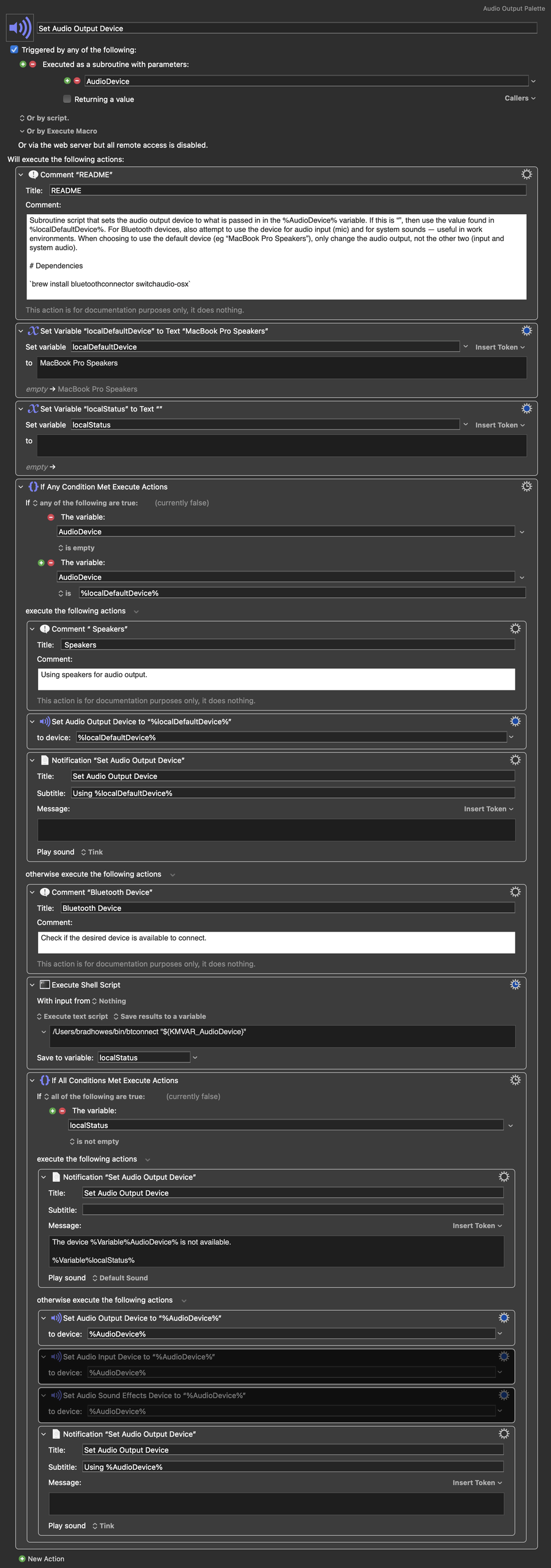
NOTE: you need to grant Keyboard Maestro access to Bluetooth via the Privacy & Security section of System Settings. Failure to do so will cause the macro to silently fail.
The macro seems long but there is actually very little to it. At the start, there is a check to see if there was a non-empty value given by the caller. If there is not, then set up so that the computer’s audio device will be used. Otherwise, the script invokes the shell script shown above (btconnect). If there was an issue, then show an alert describing the issue. Otherwise, set the audio device and post a notification to the user that also plays an brief sound to indicate that the routing is now in place.
In macOS terminology, a keyboard shortcut is a binding of a key and zero or more modifiers that will invoke a defined action. Also known as a hotkey. ↩
Yes, there are ways to activate the menu bar and to navigate to an item, but this is cumbersome and I have not investigated if it is even possible to accomplish an output device change when doing it. ↩