![[Valid RSS]](/images/valid-rss-rogers.png "Validate my RSS feed")
HelpInfoOverlay Package
Introduction
My iOS SoundFonts application has a quick-help feature that shows an overlay containing short help text with arrows pointing to the controls they belong to. The positions of the text and the arrows are dynamic, adapting to the screen size the app finds itself in by way of UIKit’s Auto Layout functionality. Here it is in action in an iPhone 17 simulator in landsape orientation:
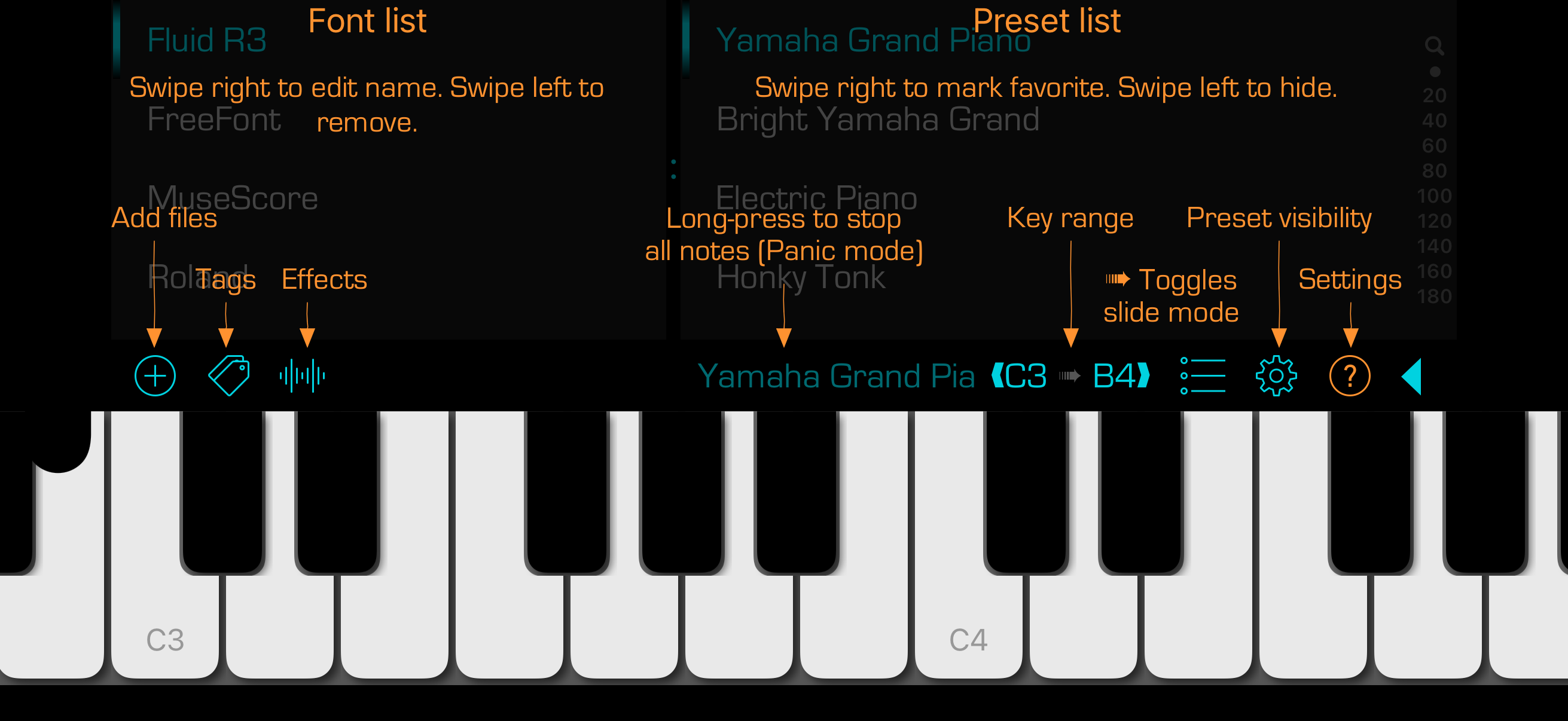
The layout usually works OK, but in this example some of the arrows (preset visibility and settings) are pointing to the wrong button, a bug most likely due to the fact that the layout code failed to account for the ◀ button being present in the control bar.
For my SwiftUI rewrite of this app (SoundFontsPlus), I decided to investigate alternatives to the approach taken in the original app. I read the post A Reusable Spotlight Onboarding Component in SwiftUI by Artem Mirzabekian that presented an elegant solution using tagging of items in the view hierarchy to denote those with help info and where they reside in the current screen layout. Artem does a great job explaining how his package works, and I was able to adopt it without any difficulty. However, I did ultimately decide to create my own package with features that I felt were needed in my own project. The rest of this article focuses on the choices I made.
Overview
The primary goal of the package is to offer an easy way to iterate over elements in a SwiftUI view hierarchy and highlight each one to show some help information. In order to focus the user’s attention, we use animations and image compositing to spotlight one item, and we try to show the help information in a way that does not obscure the spotlight region. Further, this must present well in both light and dark color schemes and when there are sheets or modal dialog panels present on the screen.
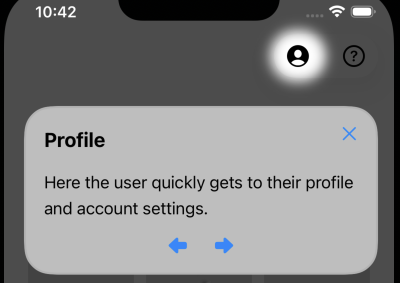
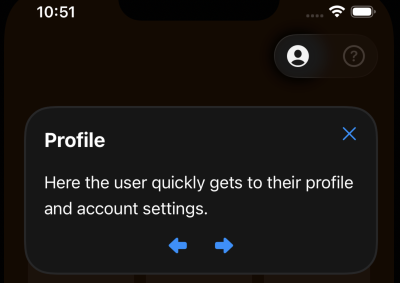
In the screenshots above, the item in the spotlight is not masked while the rest of the screen is, and a floating panel describes the purpose of the item. The panel also contains three controls, two arrows to change the current item and a button to dismiss the panel and end the spotlighting (tapping anywhere outside of the floating panel acts as if the close button was tapped).
As with Artem’s TutorialSpotlight package, integration is rather straight-forward:
- tag interesting items with a unique ID using
helpInfoViewTag. - add the
helpInfoSpotlightOverlayview modifier to a top-level item in the SwiftUI view hierarchy.
You can find Additional details in the repo.
View Modifier Flow
When the spotlight is active, I want to dim everything but the area surrounding the current item. On top of the dimming, I want a panel that shows the help information and the controls mentioned above. To accomplish this, the view modifier composes elements in discrete steps, each with a specific scope and purpose. At the start, there is SpotlightOverlayModifier which performs the view modification for helpInfoSpotlightOverlay view modifier:
func body(content: Content) -> some View {
  if config.viewConfig.scrollToItem {
    ScrollViewReader { scrollViewProxy in
      contentModifier(content, scrollViewProxy: scrollViewProxy)
    }
  } else {
    contentModifier(content, scrollViewProxy: nil)
  }
}
The code supports the option to scroll to an item before it is shown in the spotlight. When enabled, I wrap the content in a ScrollViewReader to be able to use its proxy’s scrollTo method.
Next step is actually adding modifiers to the given content view:
private func contentModifier(_ content: Content, scrollViewProxy: ScrollViewProxy?) -> some View {
  content
    .coordinateSpace(.named(SpotlightCoordinateSpace.name))
    .helpInfoSpotlightAnimationNamespace(animationNamespace)
    .overlayPreferenceValue(SpotlightOverlayPreferenceKey<ID>.self) { anchors in
      spotlightOverlayContent(anchors: anchors, scrollViewProxy: scrollViewProxy)
    }
    .animation(.smooth(duration: config.viewConfig.animationDuration), value: selection)
}
Here, I need a coordinate space to use when I ask for item frame geometry. I also need an animation namespace to use matchedGeometryEffect. Finally, the overlayPreferenceValue modifier provides me with the mapping of our custom ID and the anchor values from SwiftUI. Note that anchors are not very useful without a GeometryProxy but I postpone injecting one into the modifier until it is actually needed.
Finally, there is the last step which is responsible for creating the overlays. The usual way to present is to rely on a custom UIWindow to host the overlays. The alternative and older way is to simply inject the overlays into the modified view.
@ViewBuilder
private func spotlightOverlayContent(anchors: AnchorMap, scrollViewProxy: ScrollViewProxy? = nil) -> some View {
  if let selected = selection, let anchor = anchors[selected] {
    if let windowManager {
      windowManager.show(
        selection: $selection,
        config: config,
        anchors: anchors,
        scrollViewProxy: scrollViewProxy,
        animationNamespace: animationNamespace,
        colorScheme: colorScheme
      )
    } else {
      GeometryReader { geometryProxy in
        SpotlightOverlay(
          selection: $selection,
          animationNamespace: animationNamespace,
          config: config,
          anchors: anchors,
          geometryProxy: geometryProxy,
          scrollViewProxy: scrollViewProxy,
          selected: selected,
          anchor: anchor,
          dismissAction: {
            self.selection = nil
          }
        )
      }
    }
  } else {
    EmptyView()
  }
}
One curious point to note is that the return of WindowManager.show is always an EmptyView since the overlays are actually rendered in the custom window.
SpotlightOverlay
The SpotlightOverlay view is responsible for creating the overlay views. As mentioned above, this consists of a mask that dims everything but the area of the item under the spotlight and a panel containing the help information for the item.
var body: some View {
  ZStack(alignment: .topLeading) {
    spotlightMask
      .zIndex(1)

    config.generator(selected, actions, colorScheme)
      .drawingGroup()
      .onGeometryChange(for: CGSize.self) {
        $0.frame(in: .named(SpotlightCoordinateSpace.name)).size
      } action: { panelSize in
        self.position = config.place(panelSize: panelSize, spotlightFrame: spotlightFrame, containerBounds: containerBounds)
      }
      .frame(maxWidth: containerBounds.width - config.viewConfig.horizontalPadding * 2)
      .position(self.position == .zero ? .init(x: containerBounds.midX, y: containerBounds.midY) : self.position)
      .clipped()
      .zIndex(2)
  }
  .frame(width: containerBounds.width, height: containerBounds.height)
  .offset(x: -geometryProxy.safeAreaInsets.leading, y: -geometryProxy.safeAreaInsets.top)
  .animation(.smooth(duration: config.viewConfig.animationDuration), value: position)
  .onChange(of: pending) {
    Task {
      self.selection = pending
    }
  }
}
The mask consists of a layer of color with some opacity that lets through a muted version of the original view hierarchy. On top of this is a spotlight frame region derived from the item’s geometry. The .blendMode(.destinationOut) modifier tells the SwiftUI render to use this frame as mask to “punch out” the region from the dimming layer. This view construction ends with a .compositingGroup() performs the compositing.
private var spotlightMask: some View {
  ZStack {
    spotlightBackingColor
      .opacity(dimmingOpacity)
      .zIndex(3)

    RoundedRectangle(cornerRadius: config.viewConfig.cornerRadius)
      .frame(width: spotlightFrame.width, height: spotlightFrame.height)
      .position(x: spotlightFrame.midX, y: spotlightFrame.midY)
      .matchedGeometryEffect(id: selection, in: animationNamespace, properties: .frame, anchor: .center, isSource: false)
      .blur(radius: config.viewConfig.blurRadius)
      .blendMode(.destinationOut)
      .zIndex(4)
  }
  .compositingGroup()
  .contentShape(Rectangle())
  .onTapGesture {
    dismissAction()
  }
}
Note the use of .matchedGeometry so that changes in the spotlight frame smoothly animates from one item to another.
The overlay for the item help information comes from a function (config.generator) presented to the helpInfoSpotlightOverlay view modifier by the caller. It receives three arguments: the ID of the current selection; a collection of action closure to use to change the current selection or to dismiss the overlays; and the current color scheme that is in force by the current view hierarchy.
The view from this generator receives the .drawingGroup() modifier so that the contents of the view will animate properly when view changes size and position. The code also monitors the view size so that if the size changes, the view position will be recalculated.
HelpInfoLayout
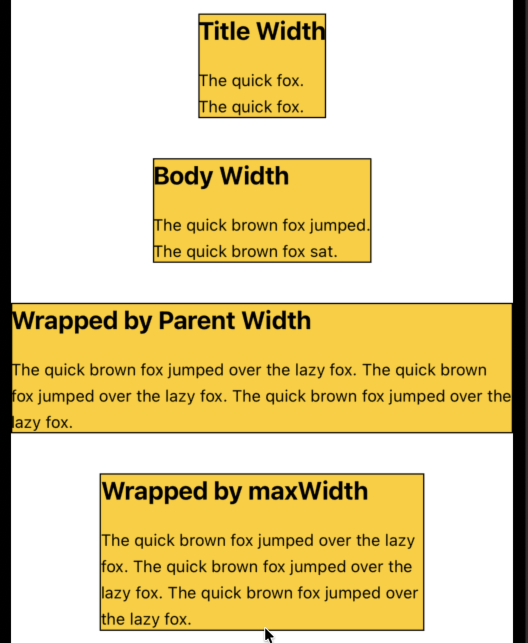
In my testing, I was not happy with having to fix the frame size of my help info overlay view. Instead I wanted a layout that would give me the best frame to use for the content that resulted in minimal wrapping, but that did not expand horizontally to the container’s width.
public struct HelpInfoLayout: Layout {
  public let spacing: CGFloat

  public init(spacing: CGFloat = 16.0) {
    self.spacing = spacing
  }

  public func sizeThatFits(proposal: ProposedViewSize, subviews: Subviews, cache: inout ()) -> CGSize {
    guard !subviews.isEmpty else { return .zero }
    var maxWidth: CGFloat = 0
    var maxHeight: CGFloat = 0
    for subview in subviews {
      let unlimited = subview.sizeThatFits(ProposedViewSize.unspecified)
      let limited = subview.sizeThatFits(proposal)
      maxWidth = max(maxWidth, min(unlimited.width, limited.width))
      maxHeight += limited.height + spacing
    }
    return .init(width: maxWidth, height: maxHeight - spacing)
  }

  public func placeSubviews(in bounds: CGRect, proposal: ProposedViewSize, subviews: Subviews, cache: inout ()) {
    let size = sizeThatFits(proposal: proposal, subviews: subviews, cache: &cache)
    let actual = ProposedViewSize(width: size.width, height: nil)
    var height: CGFloat = bounds.minY
    for subview in subviews {
      let limited = subview.sizeThatFits(actual)
      subview.place(at: .init(x: bounds.minX, y: height), anchor: .topLeading, proposal: actual)
      height += limited.height + spacing
    }
  }
}
Below are examples of various contents that illustrate the layout behavior:
HelpInfoOverlay
Included with the package is an example of the generator function that is required by the helpinfoSpotlightOverlay view modifier. It can be used as-is as long as the ID type you provide conforms to the HelpInfoProvider protocol. This protocol simply requires two attributes on the ID type:
public protocol HelpInfoProvider {
  var title: LocalizedStringKey { get }
  var text: LocalizedStringKey { get }
}
The sample generator function is in HelpInfoOverlay. It is used by the sample application in the package – it results in the rendering shown below:
WindowedOverlay
One issue I encountered with TutorialSpotlight is that when a sheet or modal view was present, the spotlight effect for an item on the sheet or the modal view did not appear the same as those times when there was no sheet or modal view. To solve this, I adopted the approach taken in another package called Beacon: create a custom UIWindow to host the overlays above everything else. The code for this is in WindowedOverlay. It exists as a class so that we can create it once and then reuse the same UIWindow value.
This class contains two methods, show and hide, that controls the state of the UIWindow. However, there are some quirks. For instance, the show method always returns an EmptyView due to how it is integrated in the view modifier code: